Settings
 Fast Delivery
 Free Shipping
 Incoterms
 Payment Types


 Marketplace Product

Mfr Part # 103030356
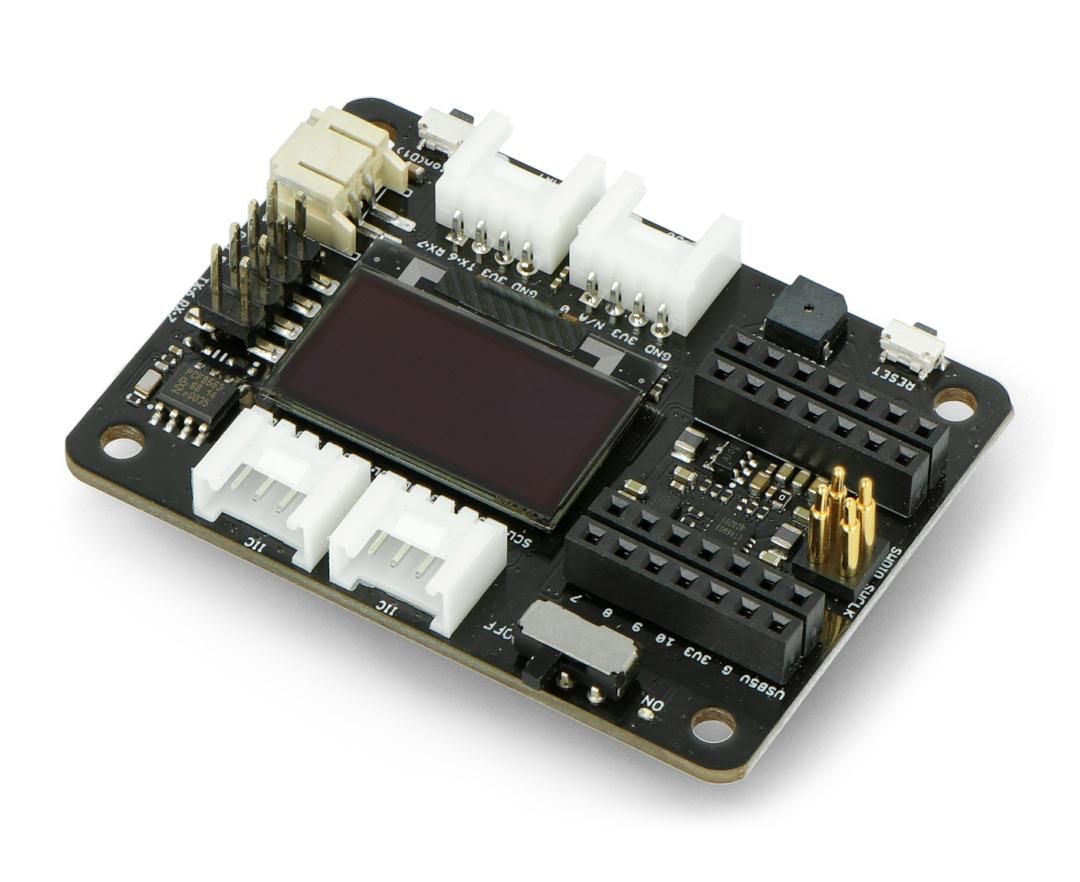
SEEED STUDIO EXPANSION BASE XIAO
Seeed Technology Co., Ltd

License: GNU Lesser General Public License Distance Microcontrollers Arduino ESP32 XIAO
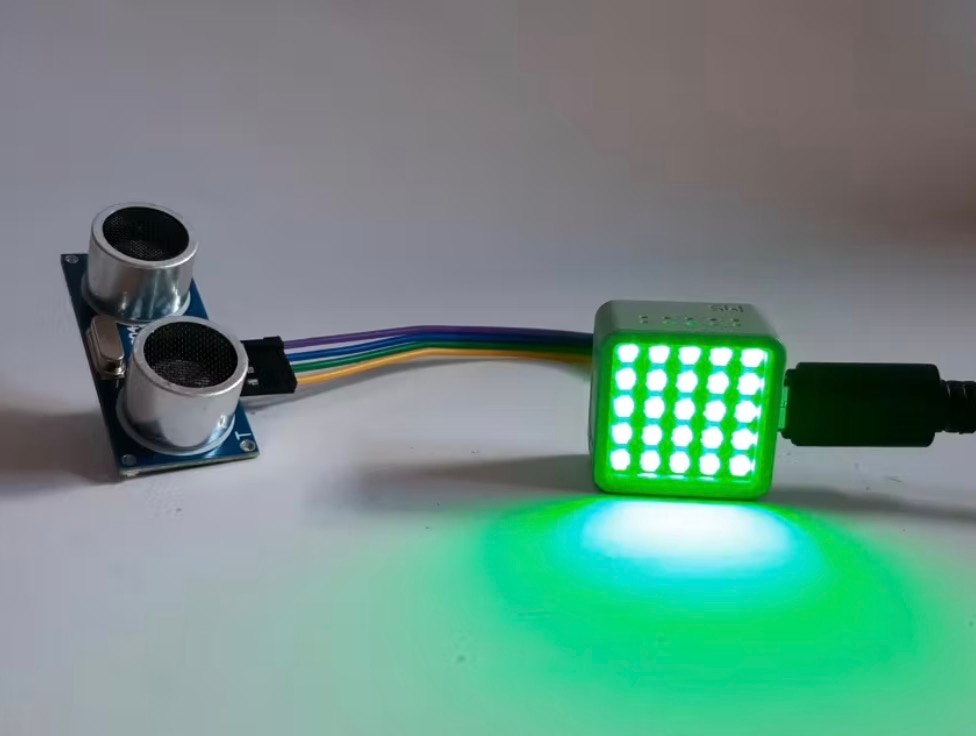
In this tutorial, we are going to explore how to measure a distance using a Seeeduino XIAO expansion board and an ultrasonic range sensor.
Watch the video!
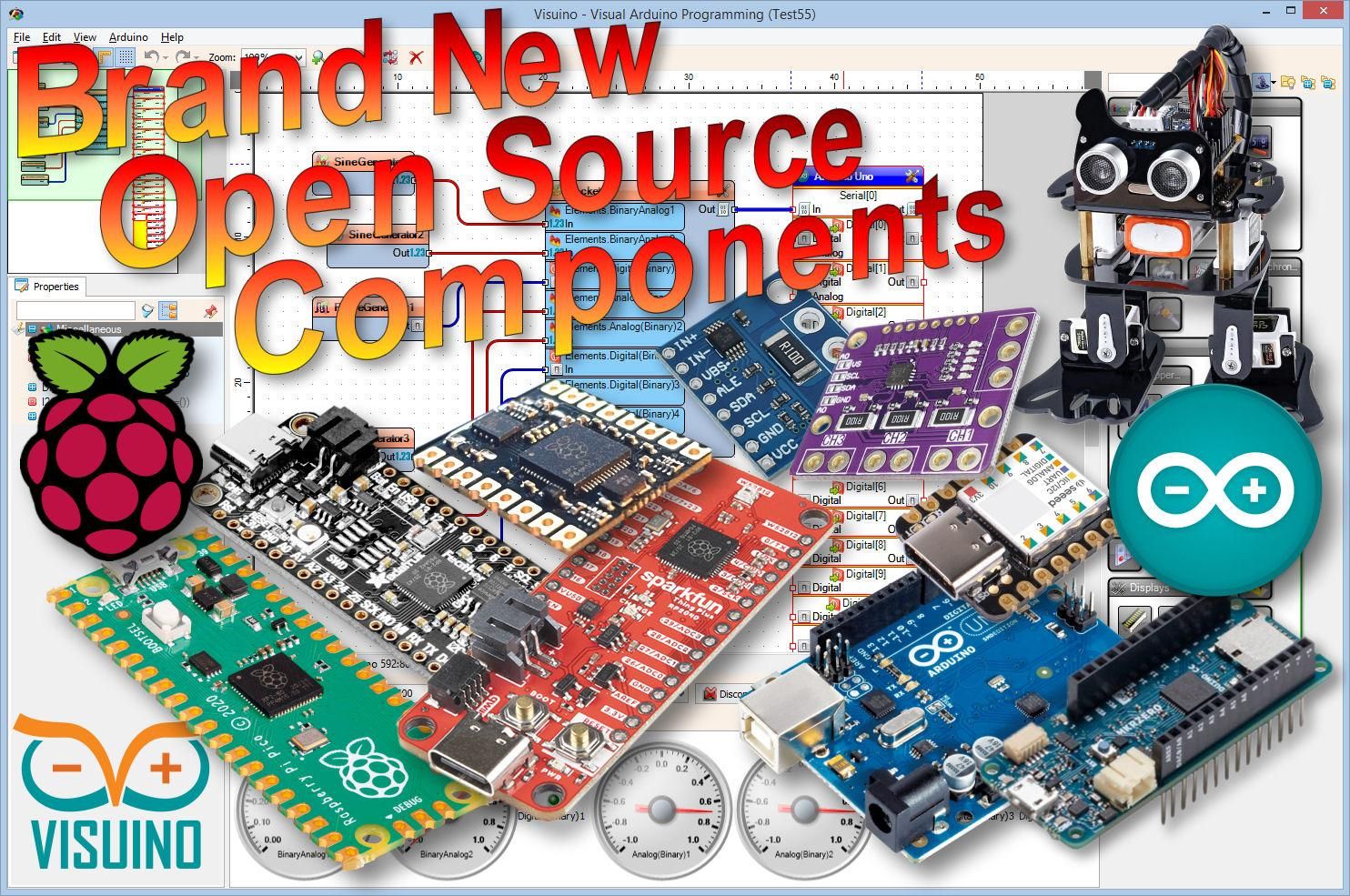
Learn more about Visuino: What is Visuino
Visuino program: Download Visuino
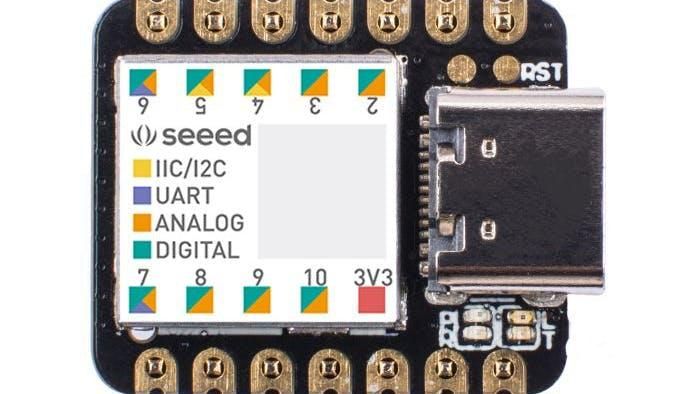
Powerful CPU: ARM® Cortex®-M0+ 32-bit 48MHz microcontroller (SAMD21G18) with 256KB Flash and 32KB SRAM
Flexible compatibility: Compatible with Visuino & Arduino IDE
Easy project operation: Breadboard-friendly
Small size: As small as a thumb (20x17.5 mm) for wearable devices and small projects.
Multiple development interfaces: 11 digital/analog pins, 10 PWM pins, 1 DAC output, 1 SWD bonding pad interface, 1 I2C interface, 1 UART interface, and 1 SPI interface.
Typical Application
Wearable devices
Rapid prototyping (directly attached to the expanded PCB as a minimal system), perfect for all projects that need a mini Arduino
DIY keyboard
USB development (USB to multi-channel TTL/USB host mode, etc.)
A scenario where you need to read multiple mock values, the DAC output
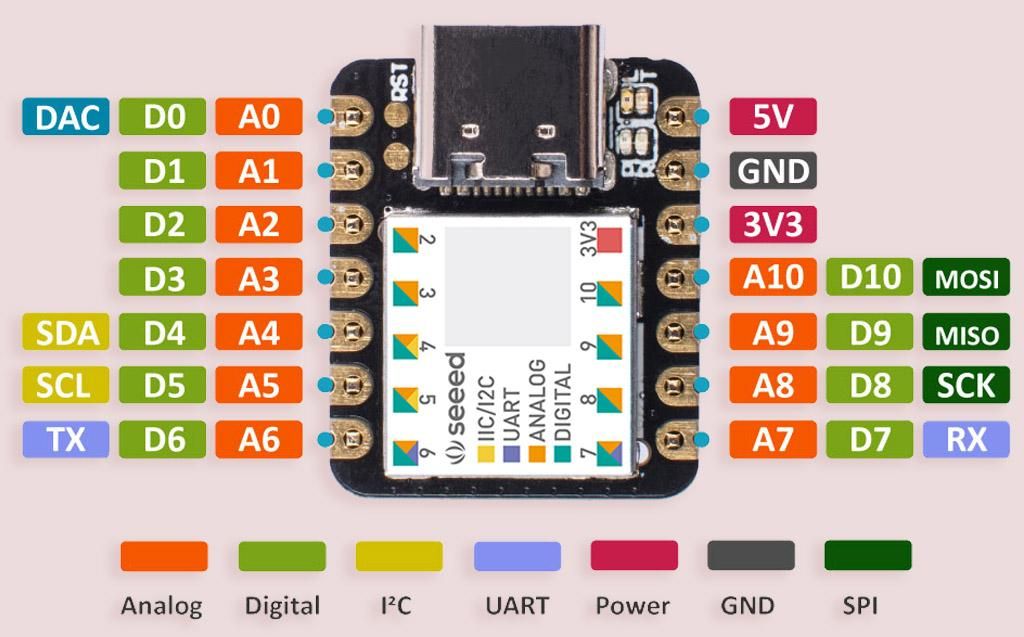
Place the Seeeduino XIAO on the Expansion board
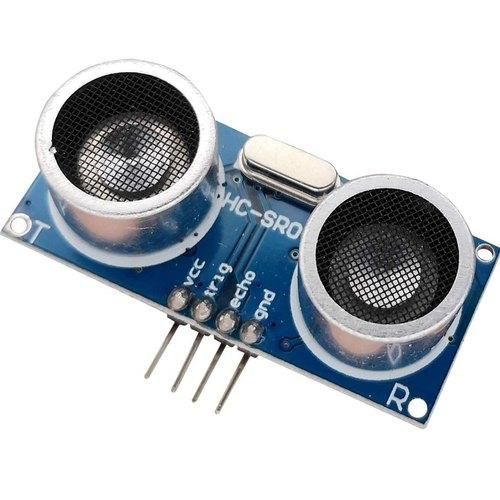
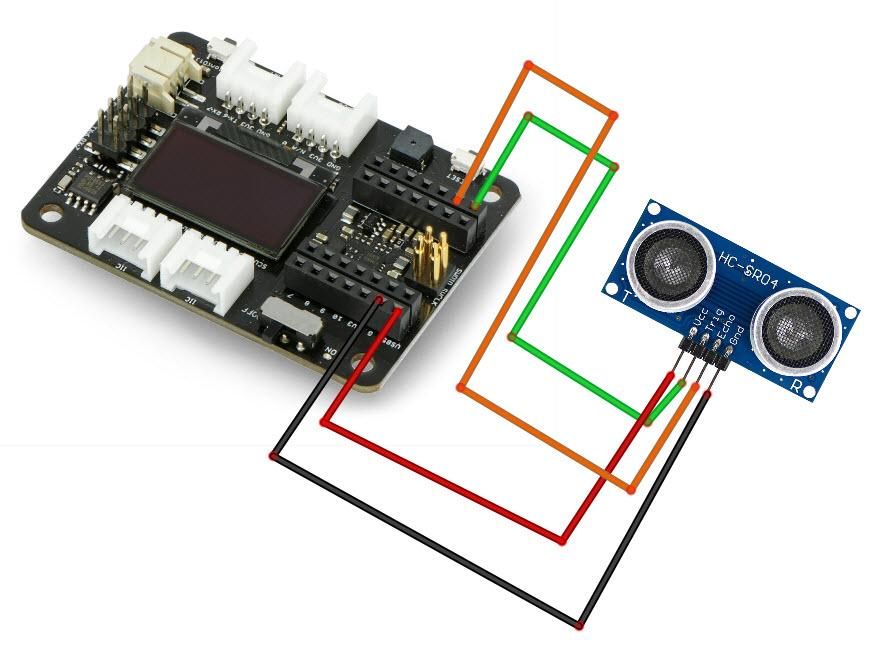
Connect the ultrasonic sensor pin [VCC] to the Expansion board pin [5V]
Connect the ultrasonic sensor pin [GND] to the Expansion board pin [GND]
Connect the ultrasonic sensor pin [Trig] to the Expansion board digital pin [0]
Connect the ultrasonic sensor pin [ECHO] to the Expansion board digital pin [1]
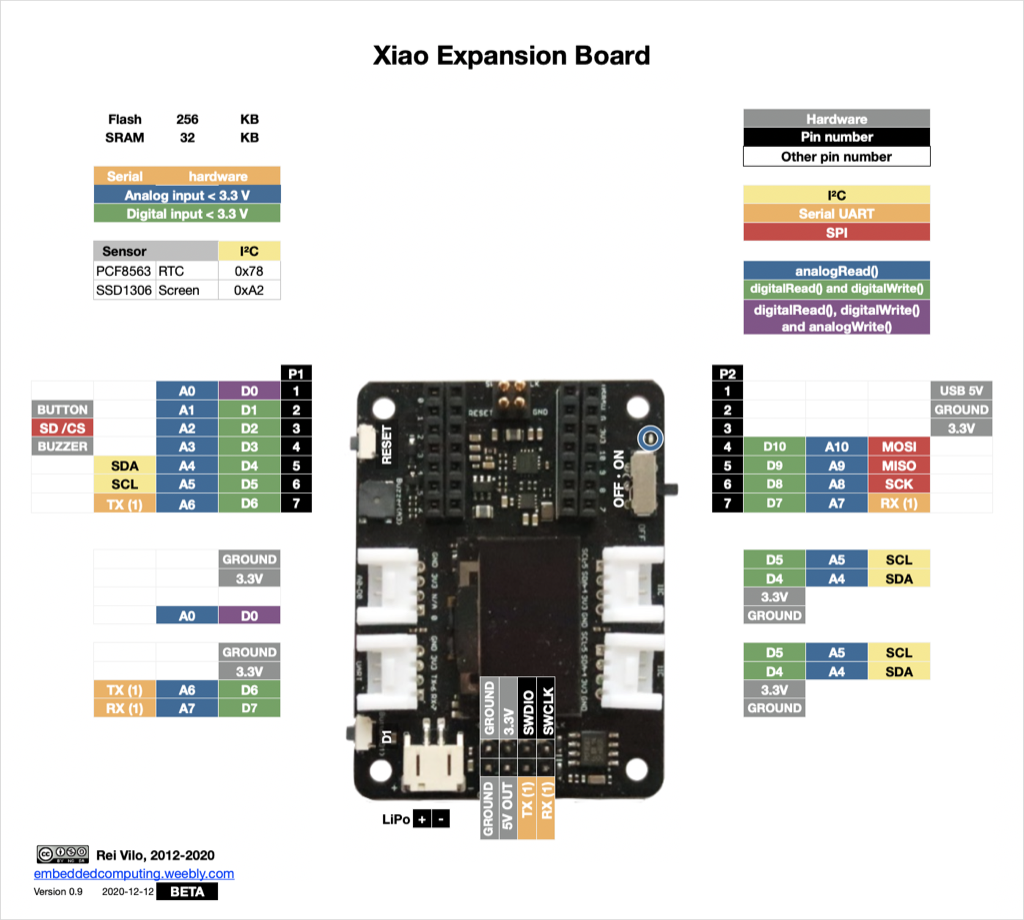
The Visuino: https://www.visuino.eu also needs to be installed. Download the free version or register for a free trial.
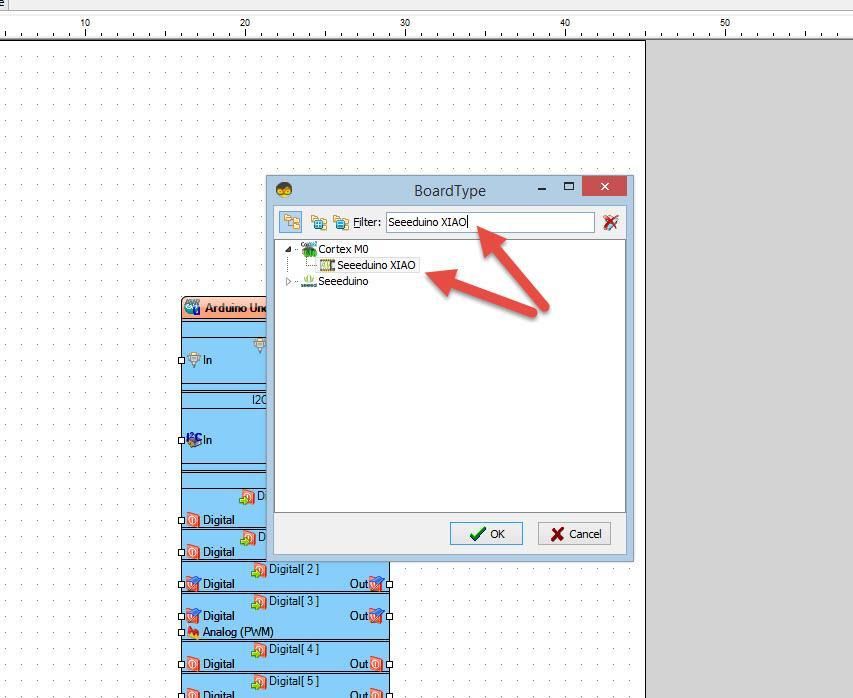
Start Visuino as shown in the first picture. Click on the "Tools" button on the Arduino component (Picture 1) in Visuino. When the dialog appears, select "Seeeduino XIAO" as shown in Picture 2
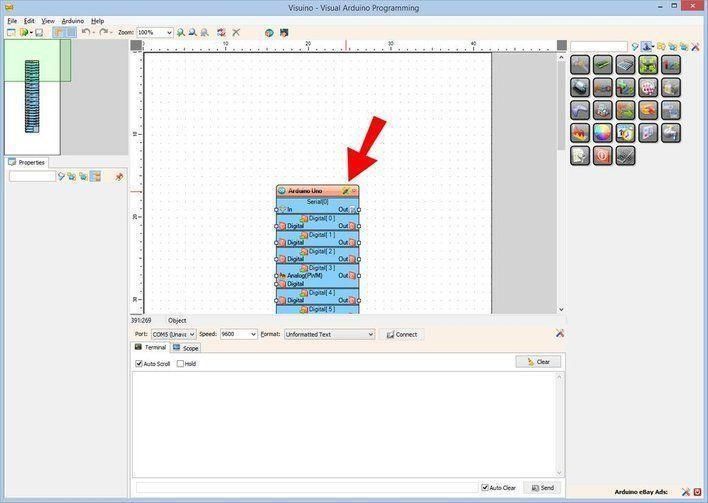
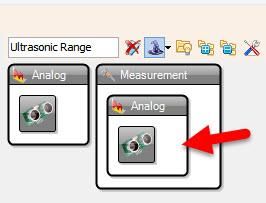
Add "Ultrasonic Ranger" component
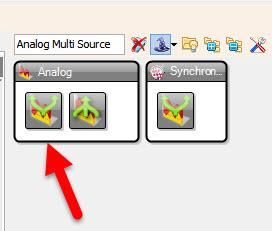
Add "Analog Multi Source" component
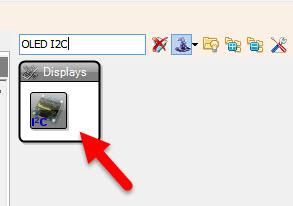
Add "OLED I2C" component
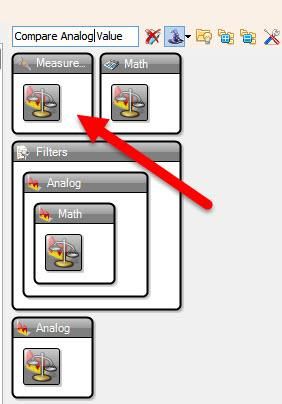
Add "Compare Analog Value" component
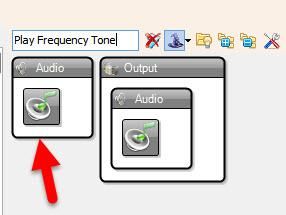
Add "Play Frequency Tone" component
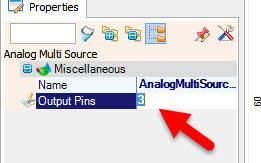
Select "AnalogMultiSource1" and in the Properties window set "Output Pins" to 3
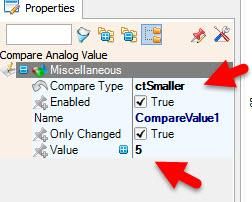
Select "CompareValue1" and in the Properties window, set "Compare Type" to ctSmaller and "Value" to 5
This means that the Piezo will beep if the distance is less than 5cm
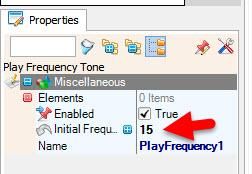
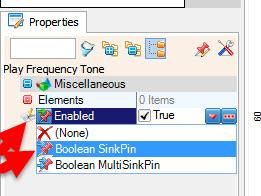
Select "PlayFrequency1" and in the Properties window select "Enabled" and click on the Pin Icon and select "Boolean SinkPin" and set "Initial Frequency (Hz)" to 15
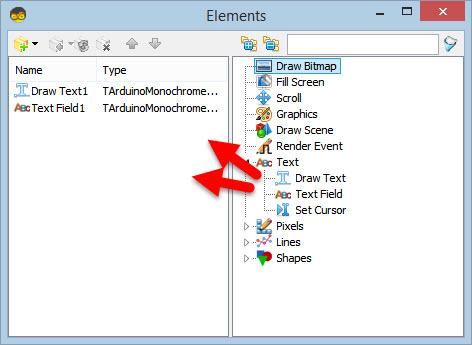
Double-click on the "DisplayOLED1" and in the "Elements" window:
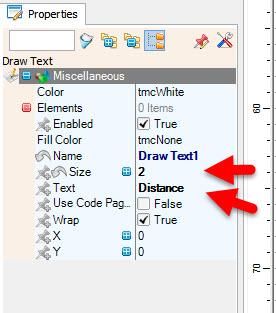
Drag "Draw Text" to the left, & in the properties window set "Size" to 2 and "Text" to Distance
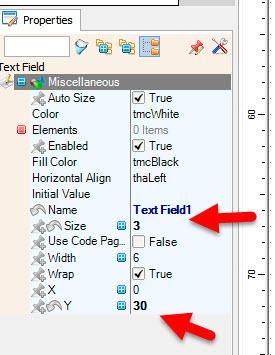
Drag "Text Field" to the left, & in the properties window set "Size" to 3 and "Y" to 30
Close the "Elements" window
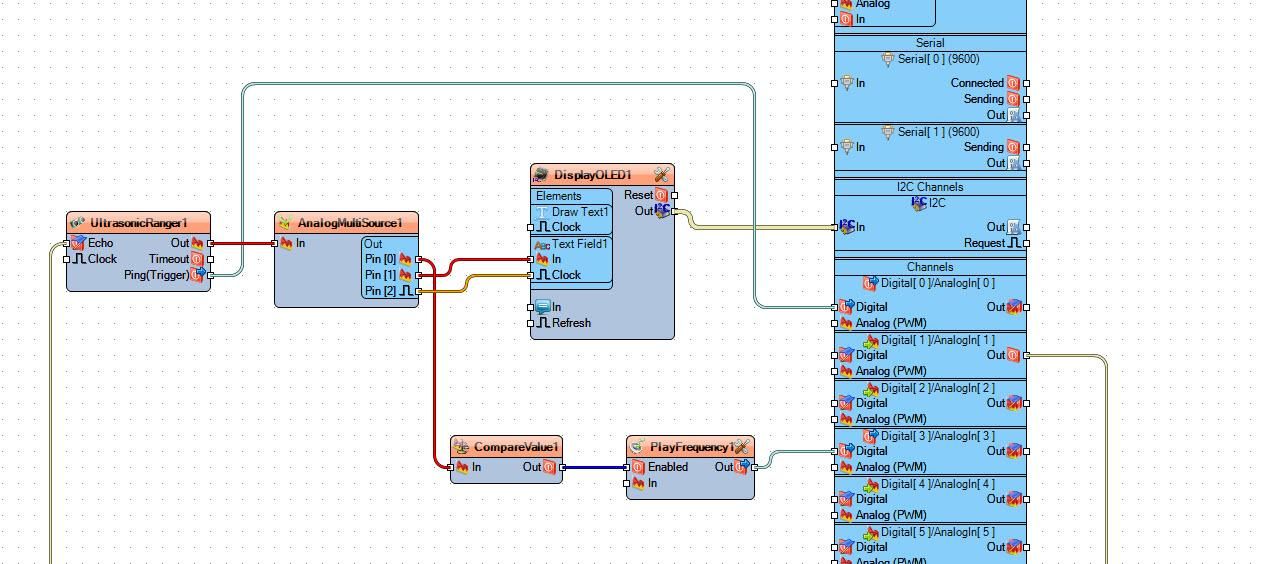
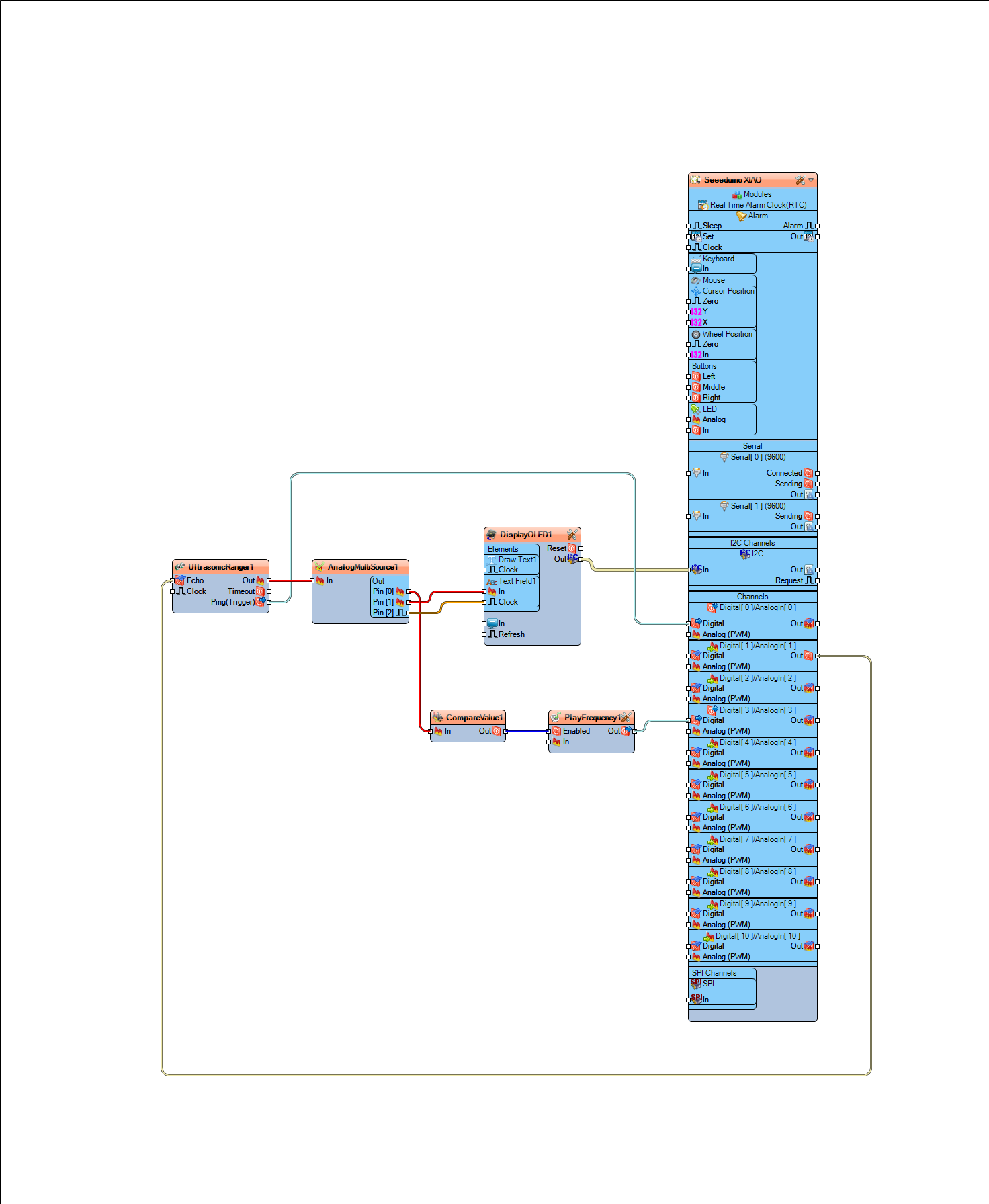
Connect "Seeeduino XIAO" Digital pin [1] to "UltrasonicRanger1" pin [Echo]
Connect "UltrasonicRanger1" pin[Ping] to "Seeeduino XIAO" Digital pin [0]
Connect "UltrasonicRanger1" pin[Out] to "AnalogMultiSource1" pin [In]
Connect "AnalogMultiSource1" pin [0] to "CompareValue1" pin[In]
Connect "AnalogMultiSource1" pin [1] to "DisplayOLED1" > "Text Field1" pin [In]
Connect "AnalogMultiSource1" pin [2] to "DisplayOLED1" > "Text Field1" pin [Clock]
Connect "CompareValue1" pin [Out] to "PlayFrequency1" pin [Enabled"
Connect "PlayFrequency1" pin [Out] to "Seeeduino XIAO" Digital pin [3]
Connect "DisplayOLED1" I2C Pin [Out] to "Seeeduino XIAO" I2C Pin [In]"
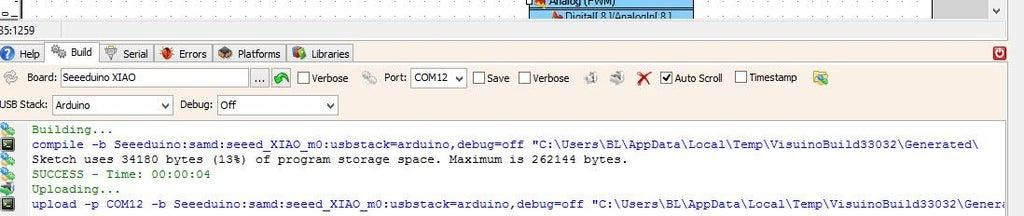
In Visuino, at the bottom, click on the "Build" tab, make sure the correct port is selected, then click on the "Compile/Build and Upload" button.
If you power the Seeeduino XIAO module, the display will start to show the ultrasonic distance of the objects. If the object is closer than 5 cm, a piezo will start to beep.
Congratulations! You have completed your project with Visuino. Also attached is the Visuino project that I created for this tutorial. You can download it and open it in Visuino: https://www.visuino.eu
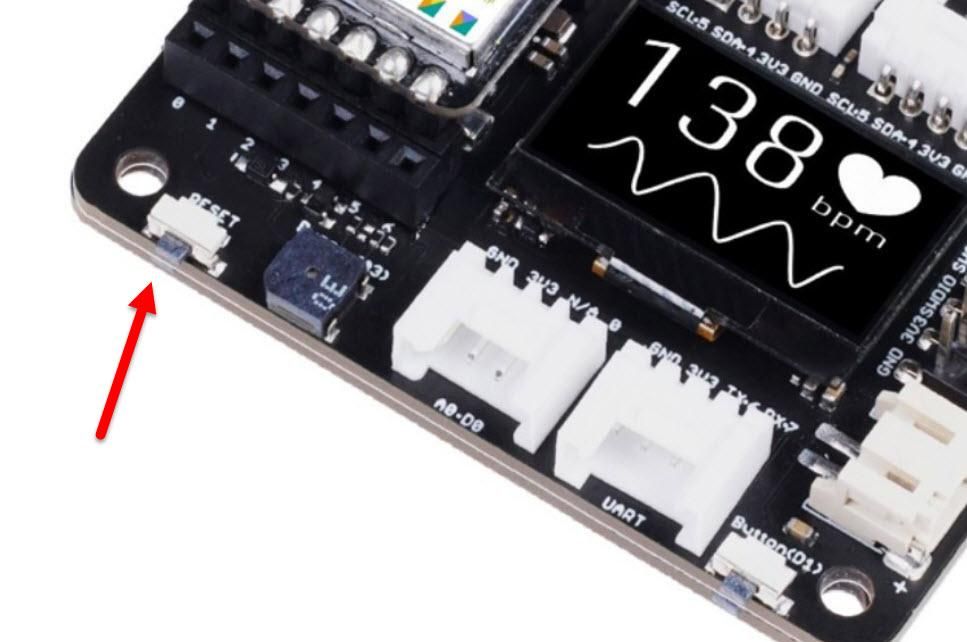
If Port is not detected in Visuino when you try to upload the code, do a reset.
Quickly press the "Reset" button 2X on the XIAO expansion board.