


 Configurações
 Entrega rápida
 Entrega gratuita
 Incoterms
 Tipos de pagamentos


 Produto do Mercado

Set Temperature, Actuator Responds – Arduino LCD Shows Live Temp & Statu
2026-04-15 | By Ron Cutts
License: GNU Lesser General Public License Bluetooth / BLE Wifi Arduino ESP32
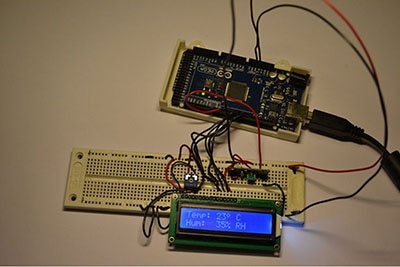
In this Visuino project, you will learn how to control a linear actuator automatically based on temperature (or humidity) readings using a DHT11 sensor, an I2C LCD, and an L298N DC motor driver. Set your desired temperature threshold, and the actuator will open when the temperature is higher than or equal to it and close when it’s lower. The LCD shows the current temperature (or humidity) and clearly displays the actuator status as Open or Closed — all without writing a single line of code!
This project is great for opening a window or door automatically based on the temperature, making it perfect for home automation, greenhouses, or any environmental control application.
This tutorial is perfect for learning how to:
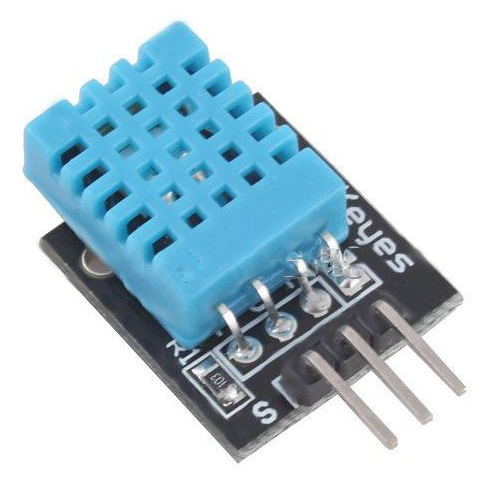
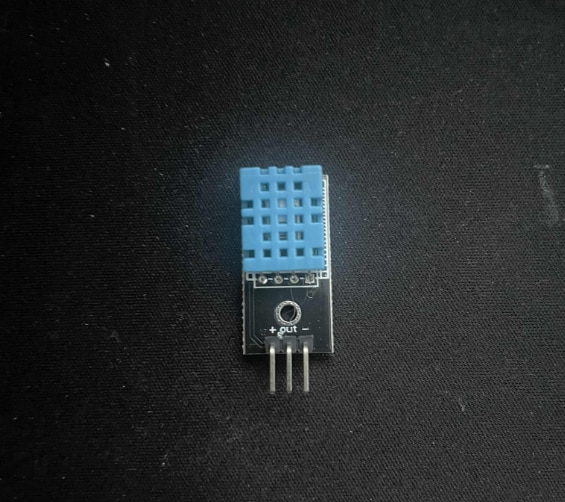
Read temperature and/or humidity from a DHT11 sensor
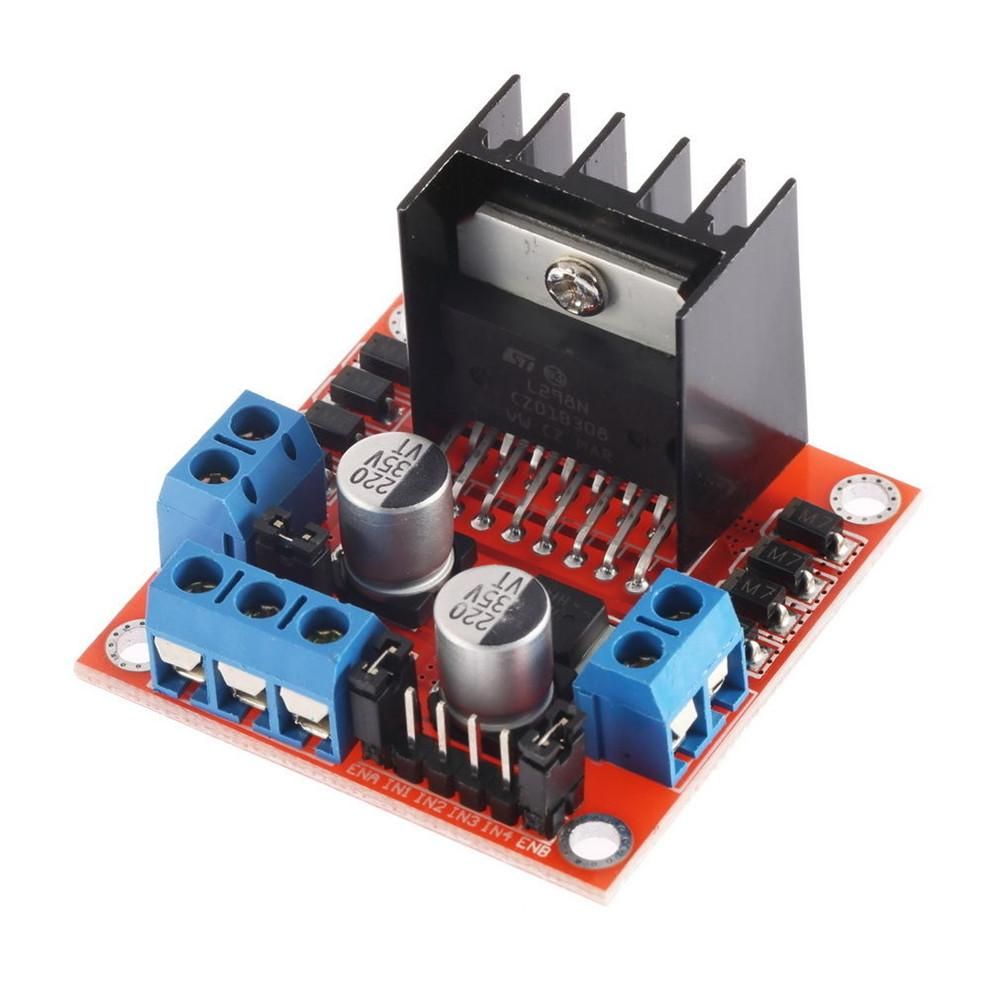
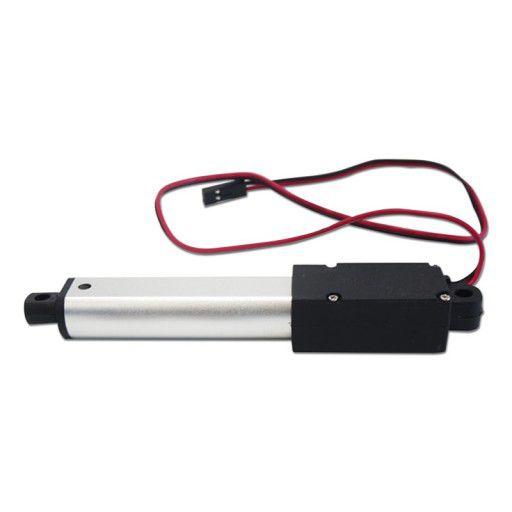
Control a linear actuator using an L298N DC motor driver.
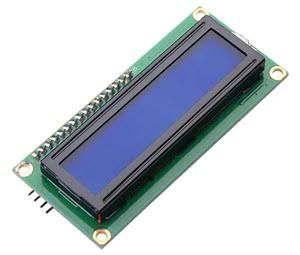
Display live sensor readings and actuator status on an I2C LCD
Create automated environment control projects with Visuino visual programming.
Build practical projects like vents, windows, or humidity/temperature-controlled devices
Download the Visuino project file at the bottom
Watch the video!
Learn more about Visuino: What is Visuino
What You Will Need
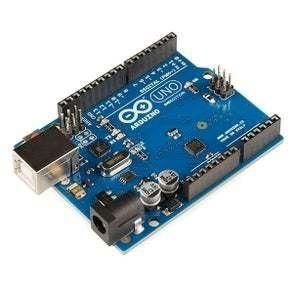
Arduino UNO (Or any other Arduino)
LCD I2C Display (Optional)
Visuino program: Download Visuino
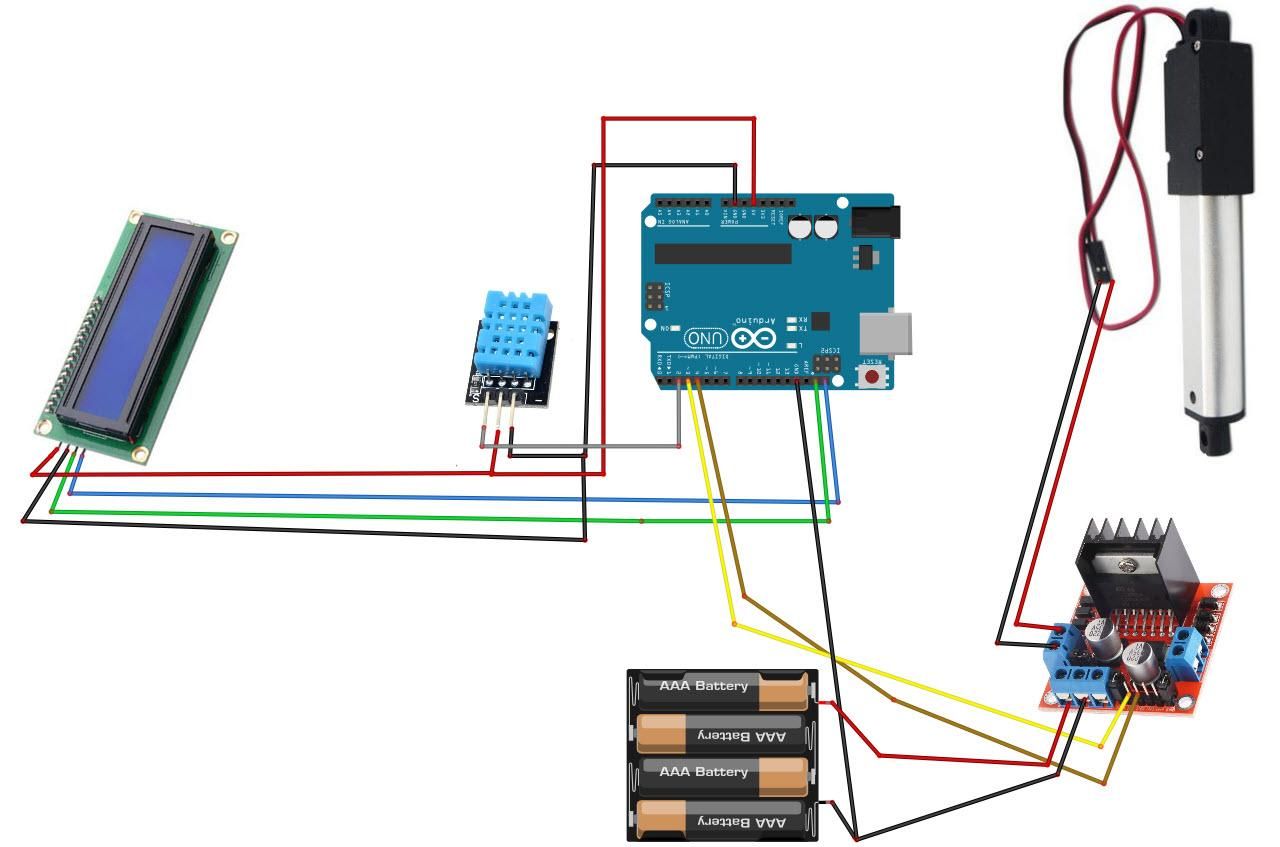
The Circuit
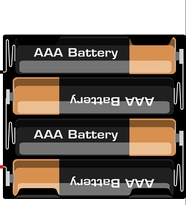
Connect the power supply (batteries) pin (gnd) to the motor driver controller pin (gnd)
Connect the power supply (batteries) pin (+) to motor driver controller pin (+)
Connect the power supply (batteries) pin (+) to the Arduino pin (VIN)
Connect the GND from the Arduino to the motor driver controller pin (GND).
Connect digital pin(3) from Arduino to motor driver pin (IN1)
Connect digital pin(4) from Arduino to motor driver pin (IN2)
Connect the linear actuator to the motor driver, as you can see on the schematic
Connect LCD Display pin [SCL] to Arduino pin [SCL]
Connect LCD Display pin [SDA] to Arduino pin [SDA]
Connect LCD Display pin [VCC] to Arduino pin [5v]
Connect LCD Display pin [GND] to Arduino pin [GND]
Connect DHT11 sensor pin[S] to Arduino digital pin[2]
Connect DHT11 sensor pin[-] to Arduino ground pin[GND]
Connect DHT11 sensor pin[+] to Arduino positive pin[5V]
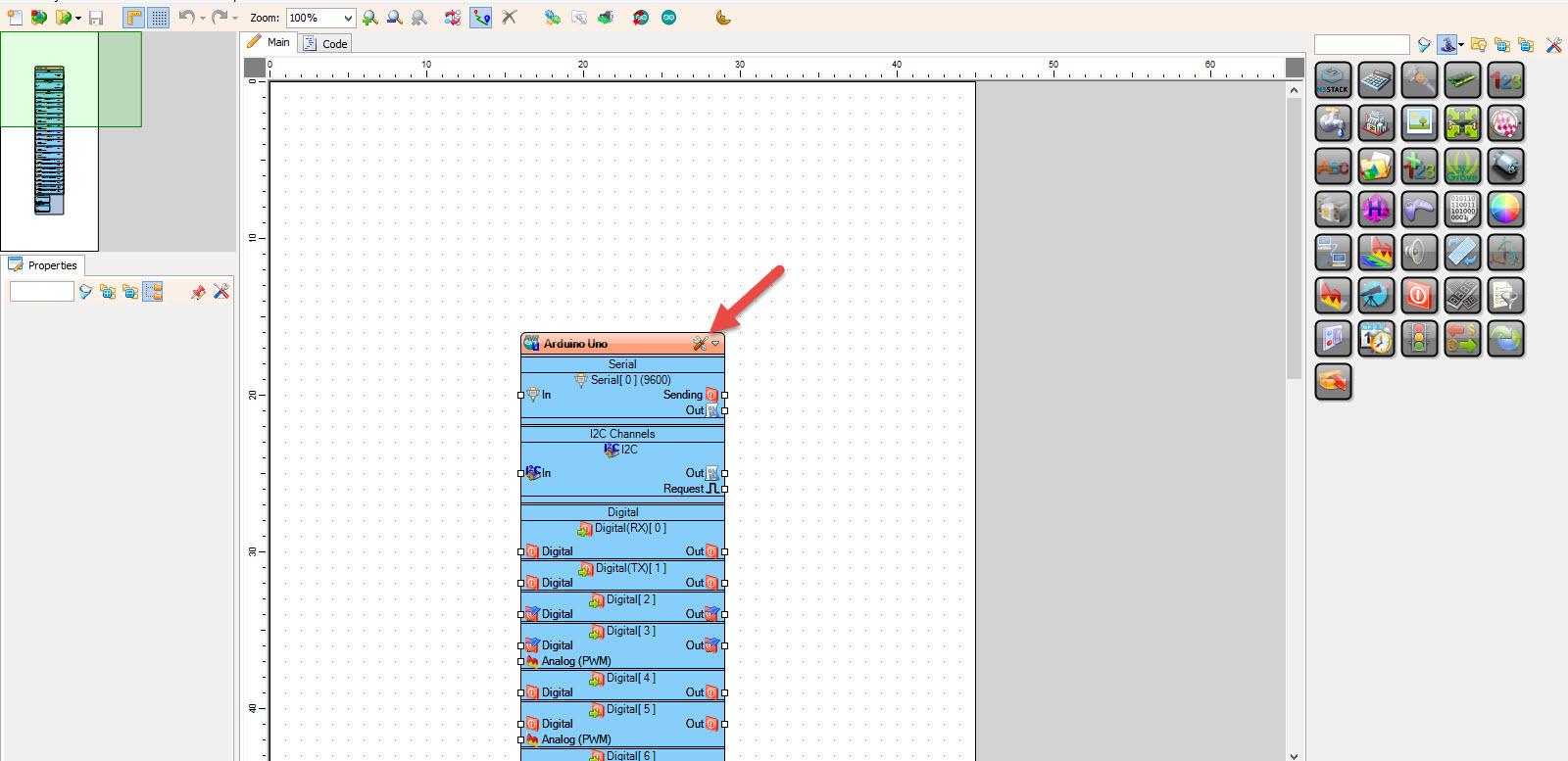
Start Visuino, and select the Arduino UNO board type.
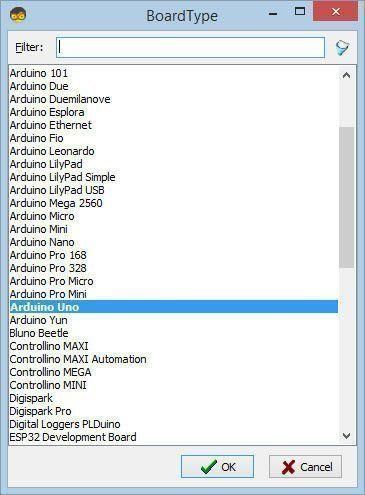
Start Visuino as shown in the first picture. Click on the "Tools" button on the Arduino component (Picture 1) in Visuino. When the dialog appears, select "Arduino UNO" as shown in Picture 2
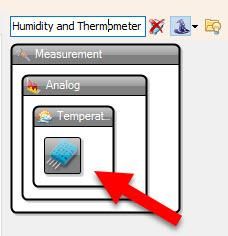
In Visuino, add components.
Add "Humidity and Thermometer DHT11/21/22/AM2301" component
Add "Analog Value" component
Add "Compare Analog Value" component
Add "Detect Edge" component
Add "Text Value" component
Add "Speed and Direction To Speed" component
Add "Dual DC Motor Driver Digital and PWM Pins Bridge (L9110S, L298N)" component
Add "Liquid Crystal Display (LCD) - I2C" component
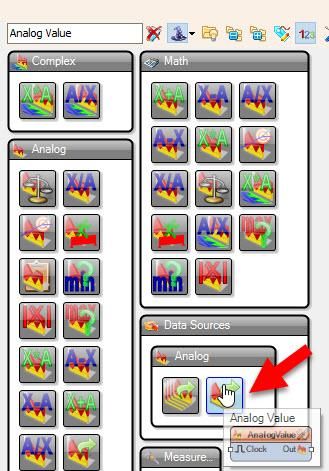
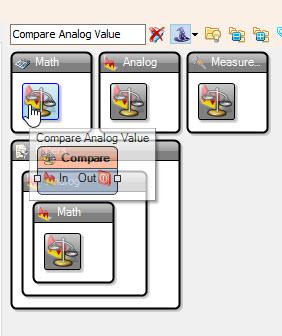
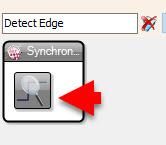
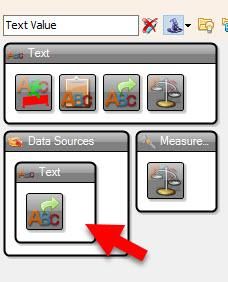
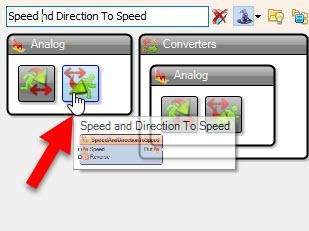
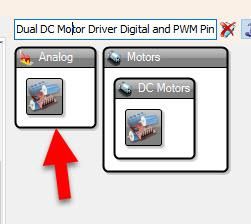
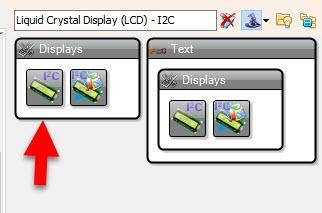
In Visuino Set Components
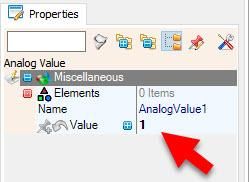
Select "AnalogValue1" and in the properties window, set "Value" to 1 <<this will be the speed of the motor; you can adjust it. The minimum is 0, and the maximum is 1
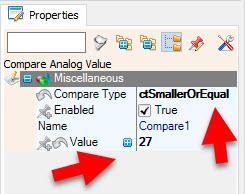
Select "Compare1" and in the properties window, set "Compare Type" to ctSmallerOrEqual and "Value" to 27 <<this is the temperature to compare; feel free to adjust this according to your needs
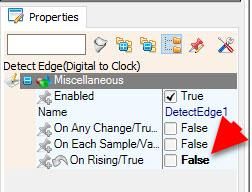
Select "DetectEdge1" and in the properties window, set "On Rising/True" to False
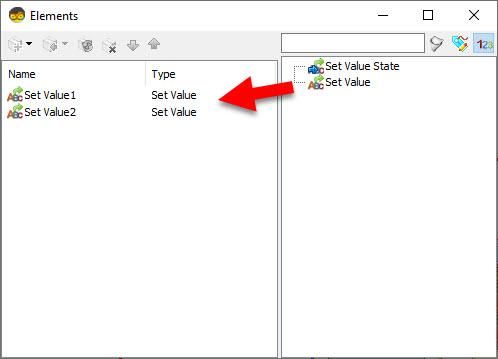
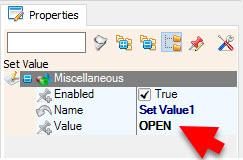
Double-click on the "TextValue1" and in the Elements window, drag "Set Value" to the left side, and in the properties window, set "Value" to OPEN
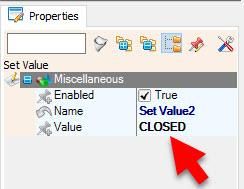
Drag another "Set Value" to the left side, and in the properties window, set "Value" to CLOSED
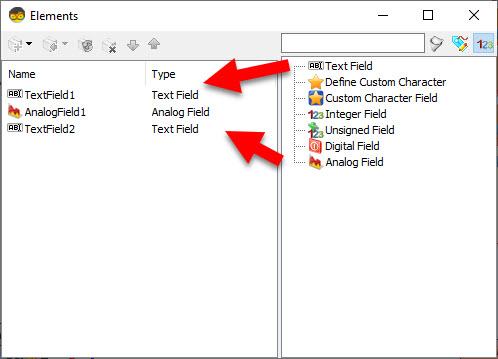
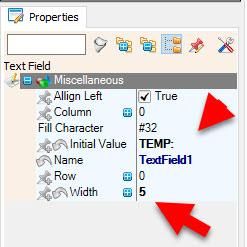
Double-click on the "LiquidCrystalDisplay1" and in the Elements window, drag "Text Field" to the left side, and in the properties window, set "Initial Value" to TEMP: and "Width" to 5
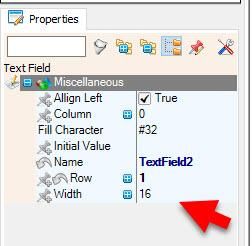
Drag another "Text Field" to the left side and in the properties window set "Row" to 1
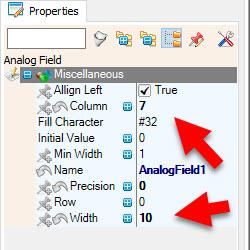
In the Elements window, drag "Analog Field" to the left side, and in the properties window, set "Column" to 7, "Width" to 10, and "Precision" to 0. <<These are temperature decimals; if you plan to use a sensor with decimal output, you can change this value
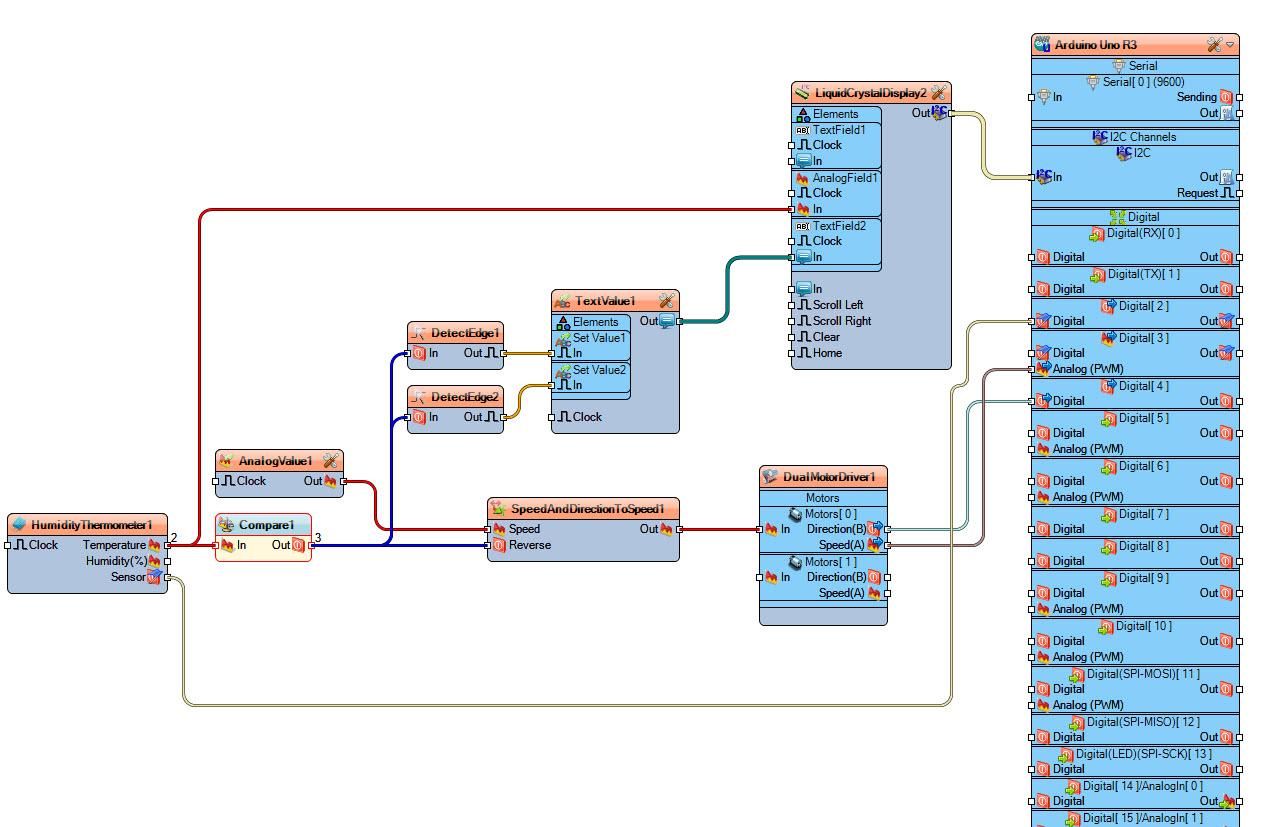
In Visuino Connect Components
Connect "HumidityThermometer1" pin[Temperature] to "Compare1" pin[In]
Connect "HumidityThermometer1" pin[Temperature] to "LiquidCrystalDisplay1" > "Analog Field1" pin[In]
Connect "HumidityThermometer1" pin[Sensor] to Arduino digital pin[2]
Connect "AnalogValue1" pin [Out] to "SpeedAndDirectionToSpeed1" pin [Speed]
Connect "Compare1" pin [Out] to "DetectEdge2" pin [In]
Connect "Compare1" pin [Out] to "DetectEdge1" pin [In]
Connect "Compare1" pin [Out] to "SpeedAndDirectionToSpeed1" pin [Reverse]
Connect "DetectEdge1" pin [Out] to "TextValue1.Elements.Set Value1" pin [In]
Connect "DetectEdge2" pin [Out] to "TextValue1.Elements.Set Value2" pin [In]
Connect "SpeedAndDirectionToSpeed1" pin [Out] to "DualMotorDriver1.Motors.Item[0]" pin [In]
Connect "LiquidCrystalDisplay1" pin [I2C Out] to "Arduino.I2CChannels.I2C" pin [In]
Connect "DualMotorDriver1" > [Motors.Item[0].Direction] pin [Out] to "Arduino" pin Digital pin [4]
Connect "DualMotorDriver1" > [Motors.Item[0].Speed] pin [Out] to "Arduino" pin Digital > Analog PWM pin [3]
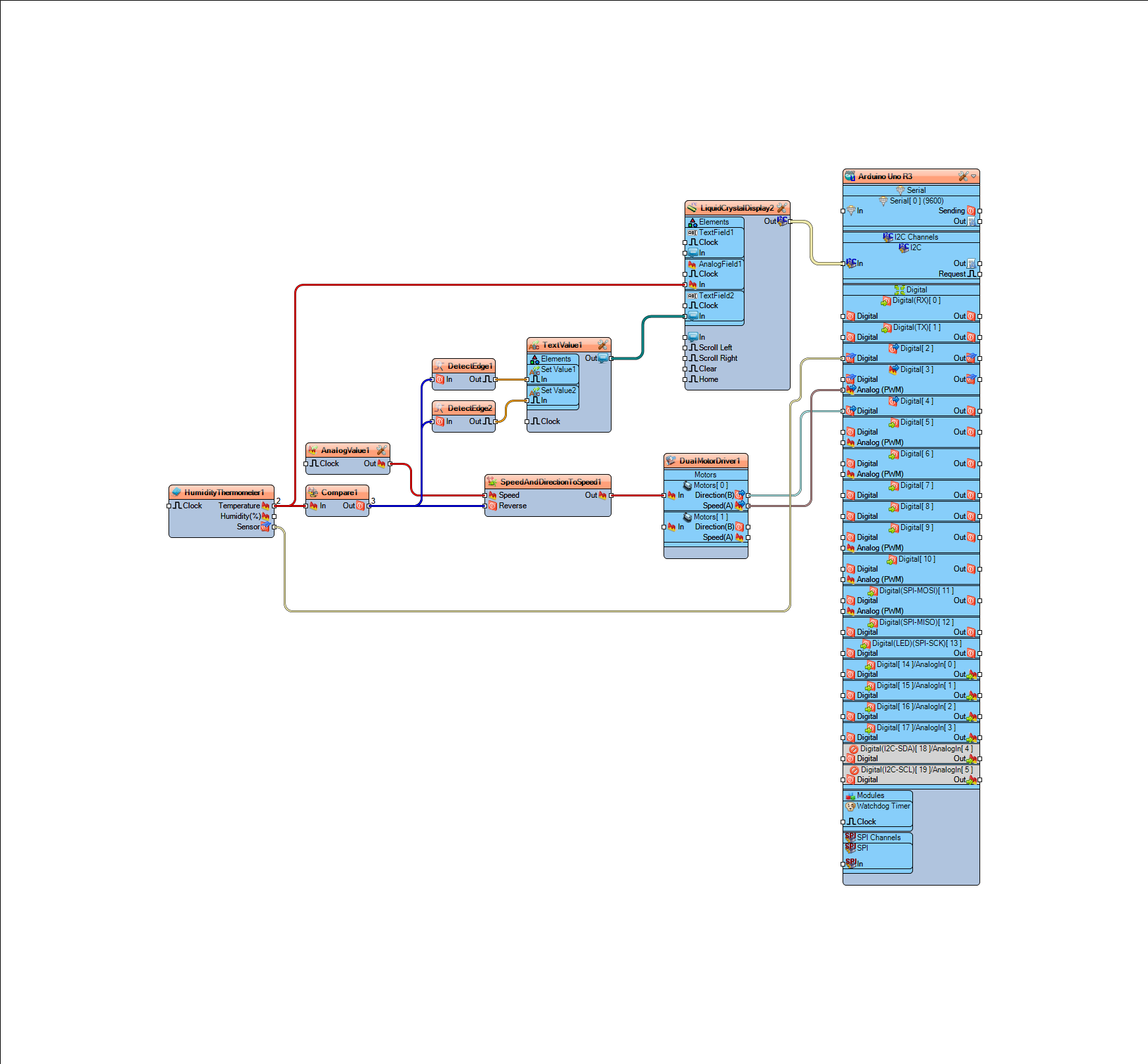
Generate, Compile, and Upload the Arduino Code
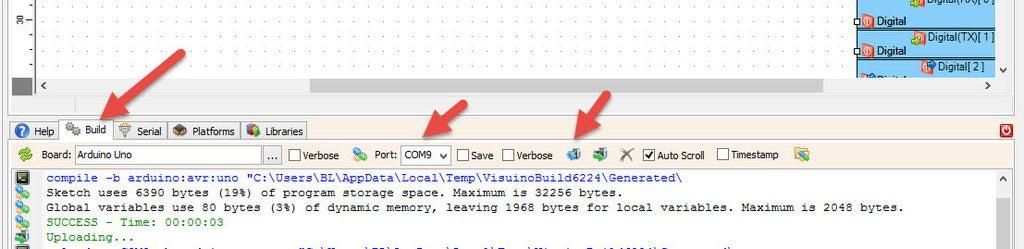
In Visuino, at the bottom, click on the "Build" tab, make sure the correct port is selected, then click on the "Compile/Build and Upload" button.
Play
If you power the Arduino module, the linear actuator will start to move according to your settings for the temperature, and the display will show the current temperature and actuator status.
Congratulations! You have completed your project with Visuino. Also attached is the Visuino project that I created for this tutorial; you can download it here and open it in Visuino: https://www.visuino.eu









 Portugal